
The capability framework tool allows you to create a capability framework and map capabilities to content.
If you are unable to see the 'Capability dashboard' in your admin dashboard, Please contact support to add the Capability feature to your tenancy.
Once the capability feature is turned on for the tenancy, You will be able to see the 'Capability dashboard'.
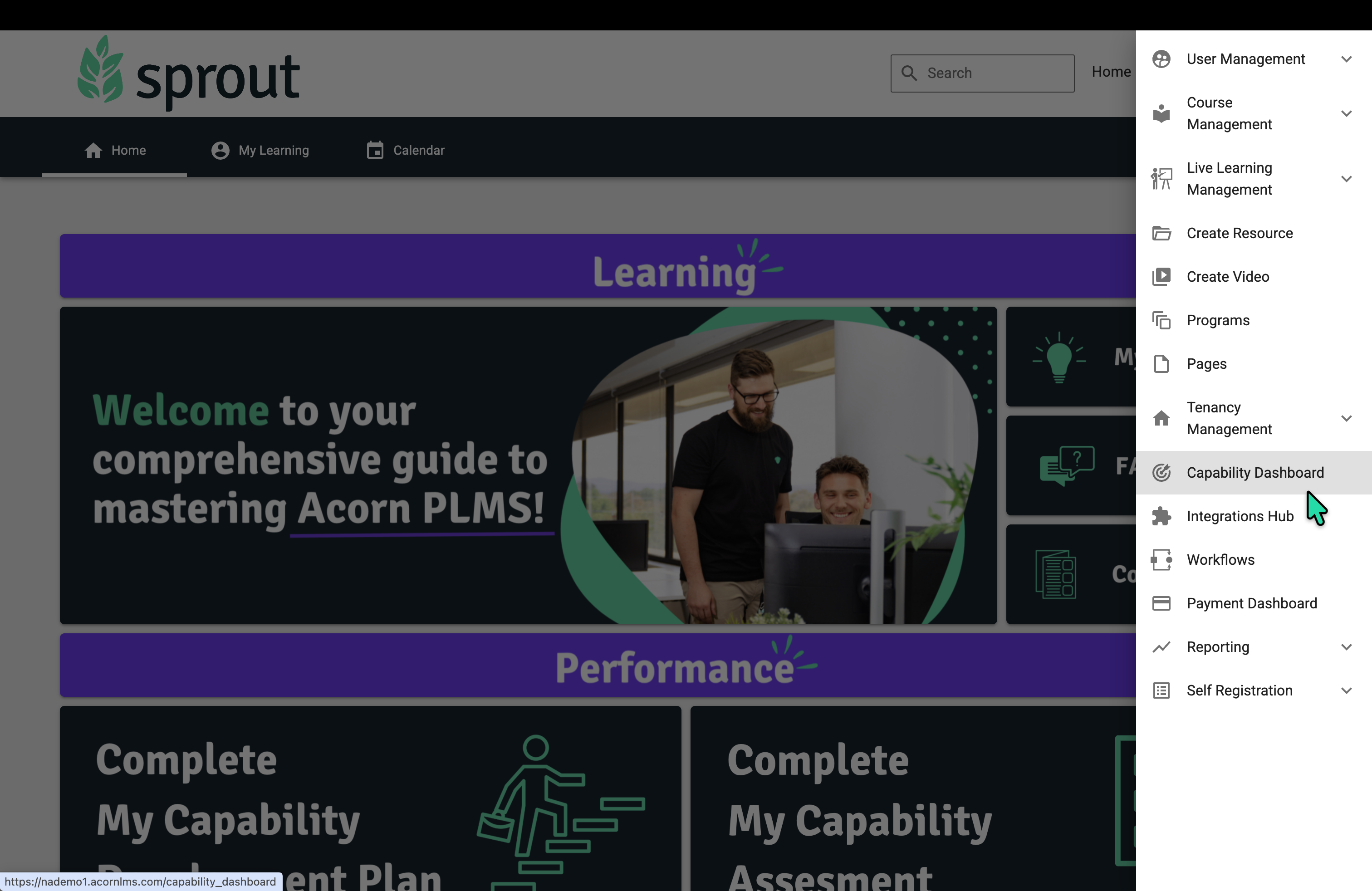
To access the capability dashboard, navigate to Admin> Capability Dashboard.
The Capability Library Dashboard looks similar to the picture shown below before the Capability Library has been set up.
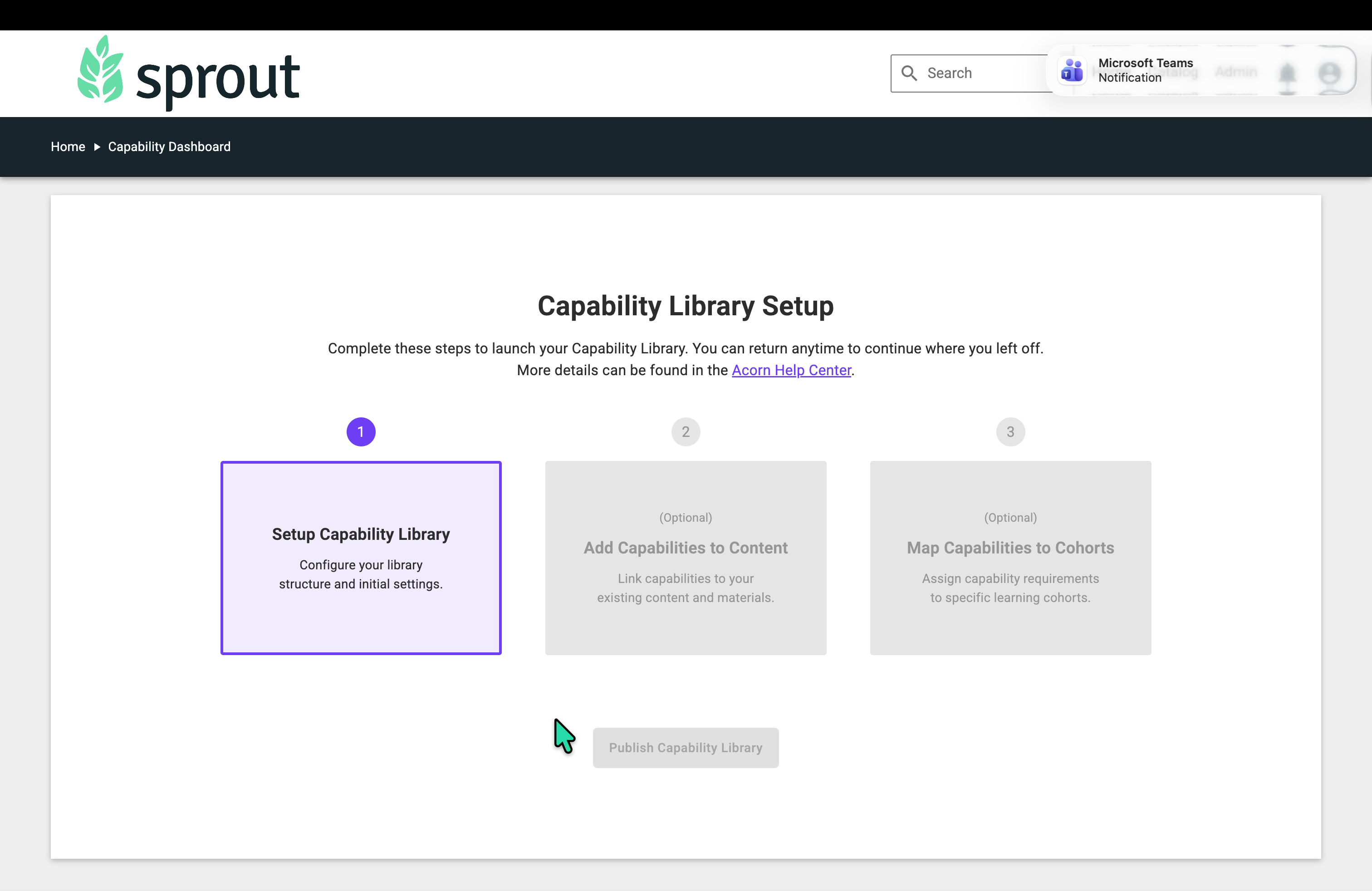
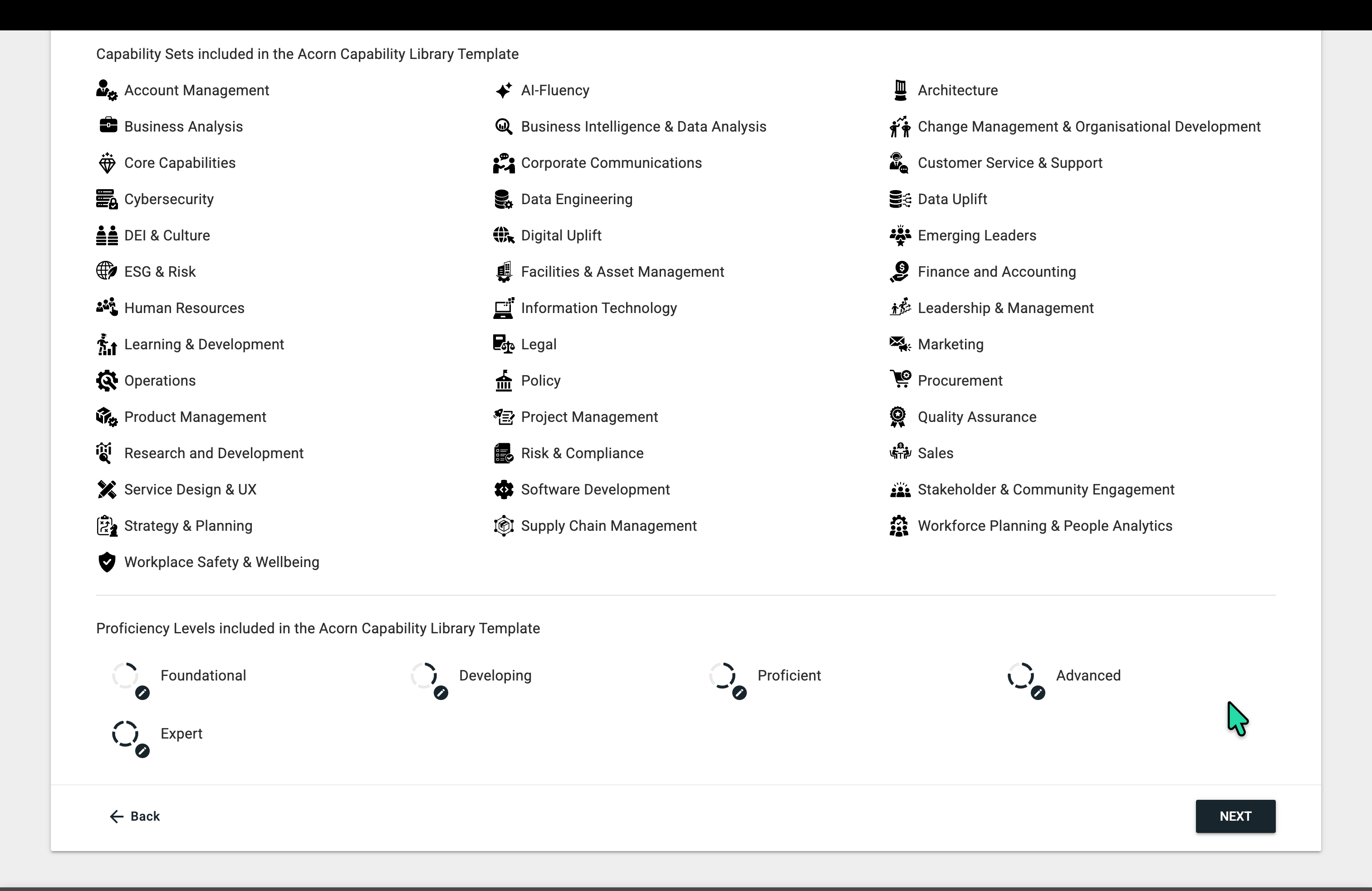
To setup the Capability library Click on 'Set Up Capability Library'. You can Select a 'Capability Library Template' in the dropdown or you can select 'Proceed without a template' in the dropdown options to add your own Capability Sets, Capabilities, and Proficiency Levels.
Select the 'Capability Library Template and click 'Next'.
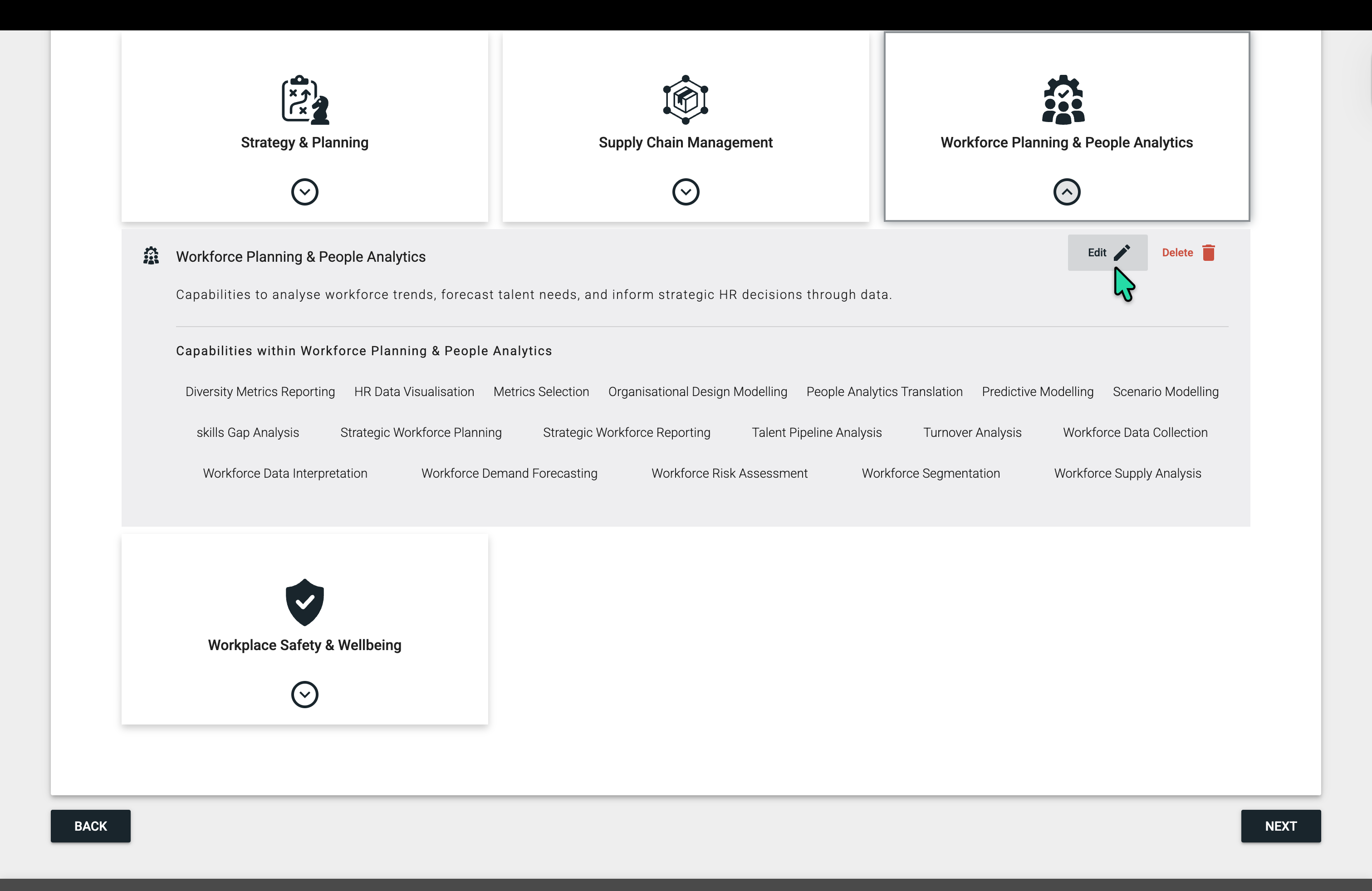
Here is where you can edit the existing Capability sets, or add new ones to your library.
You can use the Back buttons to make any changes. After reviewing the Capability Library, click "Next", and "Done"
Your Capability Library will not become visible to users until you click 'Launch Capability Library' on the Dashboard.
Note: The 'Launch Capability Library' Button is only available after you 'Add Capabilities to Content' and Map Capabilities to your organisational cohorts. Once this is done, click on "Publish Capability Library".