
To automatically assign users to a Cohort, use User Field conditions. Any user whose profile matches the defined conditions is automatically added to the Cohort. For the manual method of adding users to Cohorts, refer to the Manually Adding Users to a Cohort article. For an overview of the Cohort feature, refer to the What is a Cohort? article.
How do I assign User Fields to a Cohort?
Follow the steps below to assign User Field conditions to a Cohort. Any user whose profile matches these conditions will be automatically enrolled.
Before you begin: You must have Admin access to perform these steps.
1. Navigate to the Manage Cohorts page by clicking Admin > User Management > Manage Cohorts.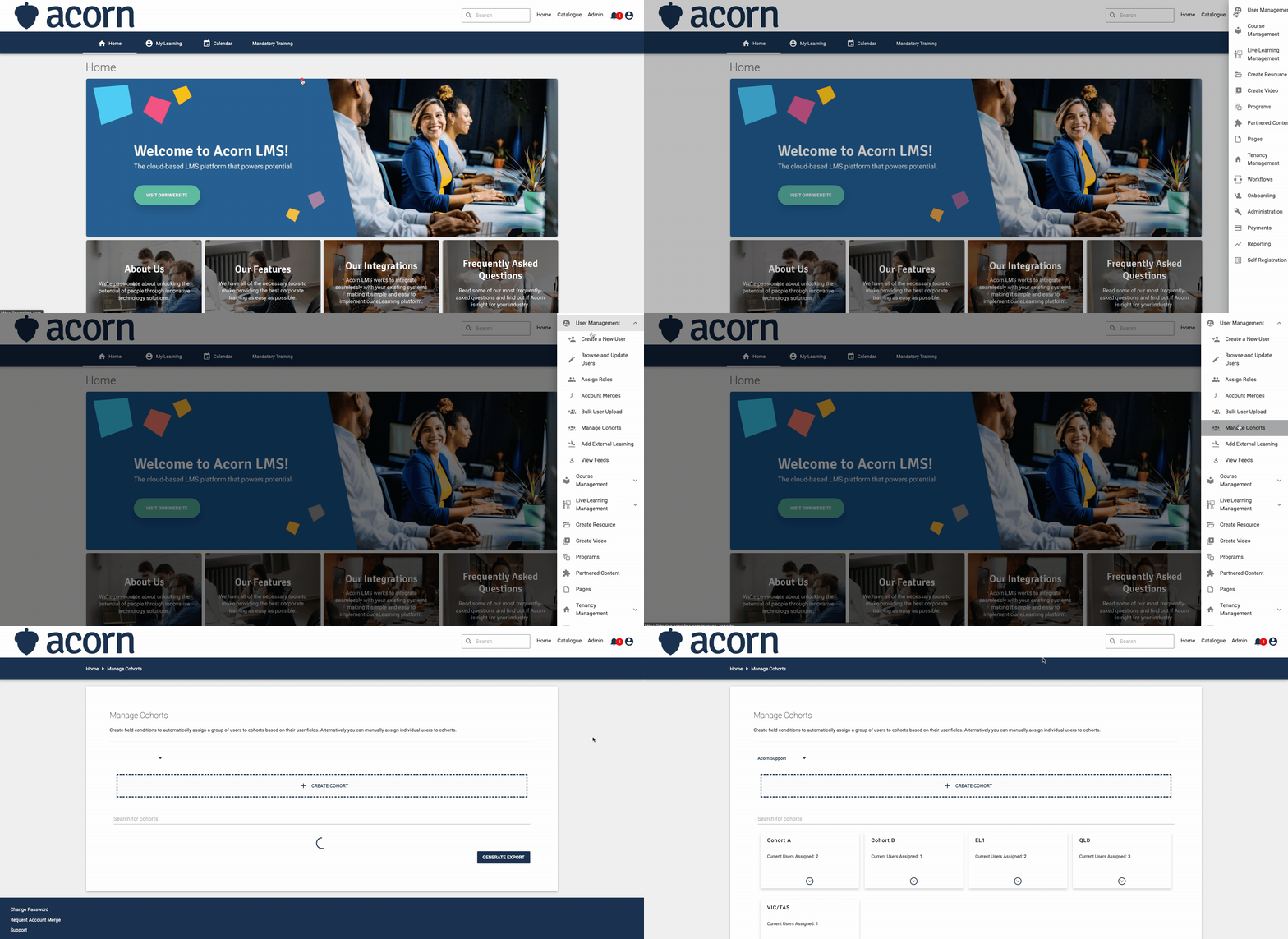
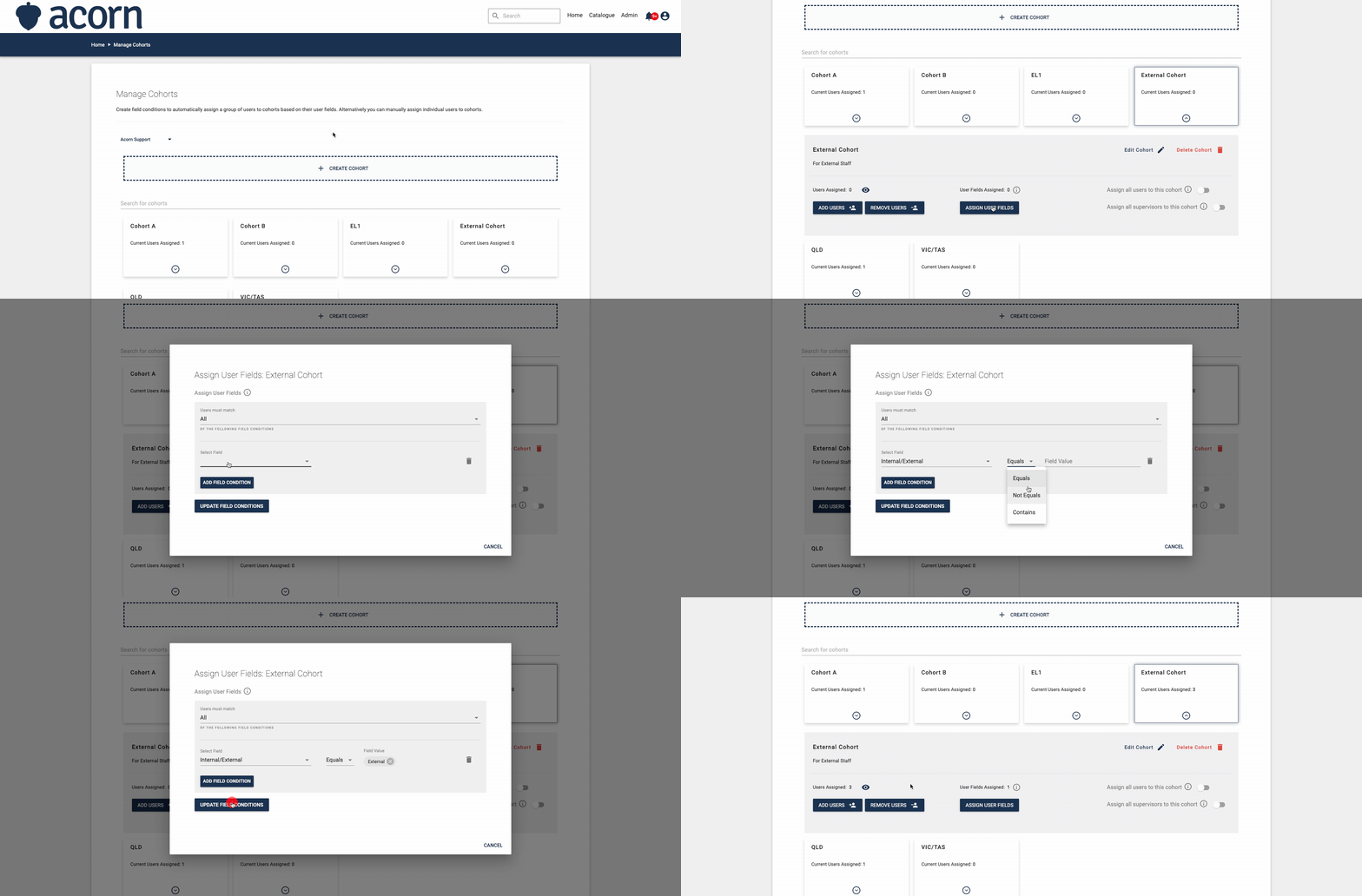
2. Click the actions icon on the Cohort, then select Assign User Fields.
- Click Add Field Condition to add a new condition.
- Select a field from the dropdown menu.
- Set the operator (for example, equals or contains) and enter the required field value.
- Click Update Field Conditions to save your changes.
How does the 'Users must match' setting work?
Users matching the assigned User Field conditions are automatically assigned to the Cohort. The match setting controls how multiple conditions are evaluated:
- Users must match - All: Only users who satisfy every assigned User Field condition are added to the Cohort.
- Users must match - Any: Users who satisfy at least one assigned User Field condition are added to the Cohort.
3. To view a list of the users in the Cohort, select the eye icon.
How do I remove User Field conditions from a Cohort?
4. To remove assigned User Fields from a Cohort:- Click the
 on the Cohort, then select Assign User Fields.
 - Locate the User Field you want to remove.
- Click the bin
icon to the right of that field.
- Click
Update Field Conditions to finalise.
You have now successfully assigned User Fields to a Cohort! Please contact Support if you require further assistance.