
This article explains how to configure a campaign for Capability Assessment Reports, covering assessment form setup, capability mapping, and campaign launch.
-
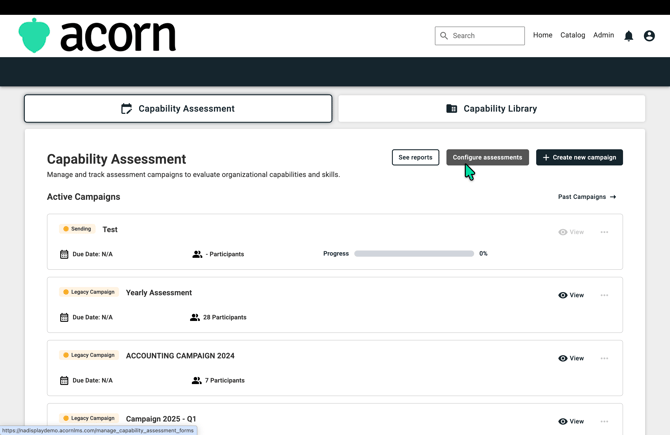
From the Dashboard, click on the following: Admin > Capability Dashboard > Capability Assessment > Configure assessments.
-
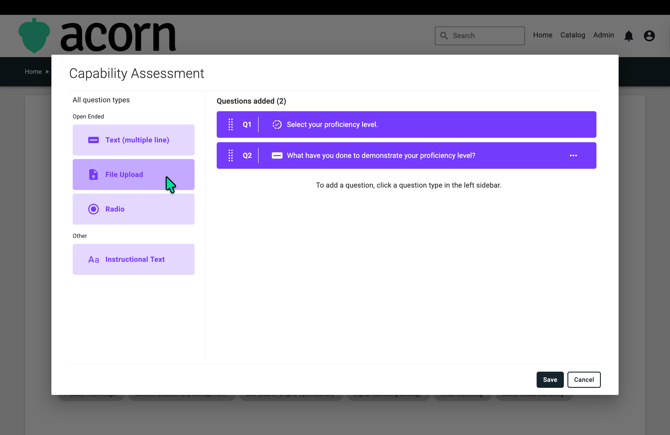
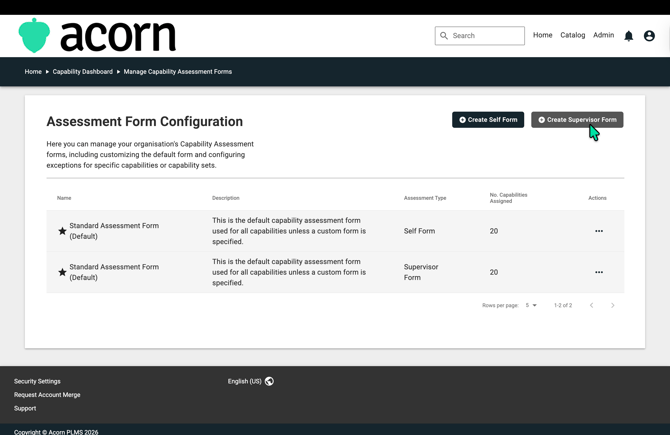
Here you will see the two standard forms: one for self-assessment and one for supervisor assessment. You can also see which capabilities are currently assigned to each form. To edit an existing form, click the three dots under Actions and select Edit Self Form. Note that Question 1 is the default question and cannot be deleted, and the form name and description cannot be edited on the default form. Add any open-ended questions you need, then save. Repeat this process for the supervisor form.
.
-
To create a new form, click Create Self Form or Create Supervisor Form. Here you can customise the name and description, and assign the relevant capabilities and capability sets to the form. Don't forget to save.
-
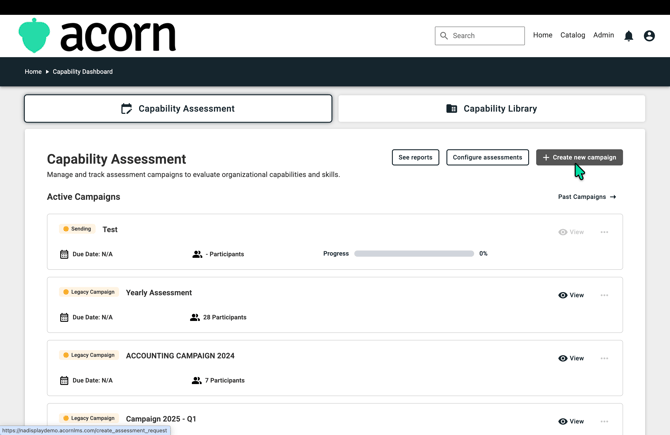
Once your mappings and assessment forms are ready, you can now launch a campaign. On the Capability Assessment page, click on Create new campaign.
-
From this page, name your campaign. Choose the option to send the assessment to all Cohorts and Users, or to manually select Cohorts or Users. Choose which capabilities are to be assessed, whether that is assigned capabilities, interest capabilities, or both.
Don't forget to preview your email to review and/or edit the email template before sending your campaign. Choose a custom date and time to schedule your campaign, or send it immediately.
- Once everything looks good, click Confirm to send. Your campaign is now live.
Contact Support if you have any further questions.