
What are Interactions?
Interactions are a way for you to capture and record meaningful moments from your day-to-day work — situations where you applied skills, made decisions, or demonstrated a capability. Think of them as a personal journal of real-world experiences that can be used to support your professional development and capability assessments.
Why use Interactions?
Interactions help you build an evidence base of the work you actually do. Over time, they give you — and those who support your development — a rich picture of how you apply your capabilities on the job.
How to create an Interaction
When you create a new Interaction, you'll be asked to fill in up to four fields:
- Work Moment (required) — A brief description of the situation or context. What was happening? For example, "I was leading a team meeting to resolve a project delay." This field has a 100-character limit.
- Capability (required) — Select one or more capabilities from your assigned capability set that this moment relates to. You can only choose from capabilities that have been assigned to you. If your organisation uses proficiency levels, you'll also be able to indicate which level best reflects your performance in this moment.
- The Move (optional) — Describe what you actually did or decided in response to the situation. What action did you take?
- Guiding Considerations (optional) — Explain what influenced your thinking or approach. What factors did you weigh up?
Tip: Not sure how to fill these in? The form includes example Work Moments and Moves that you can expand to guide you.
Where to Create an Interaction
1. Your Capability Homepage ("My Interactions" card)
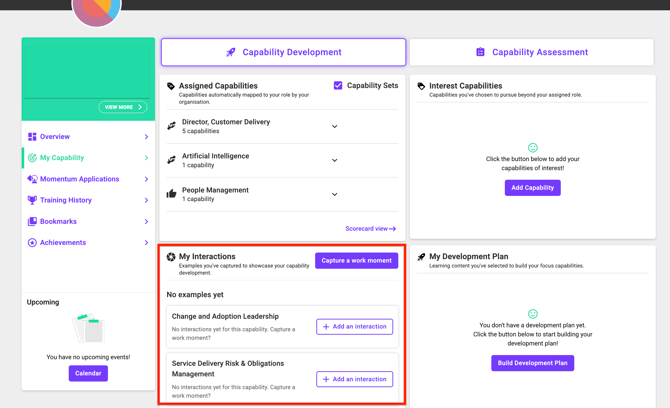
The primary place to create an Interaction is directly from your Capability Homepage — the page that shows your assigned and interest capabilities, development plan, etc.
On that page, there is a dedicated "My Interactions" card. It shows:
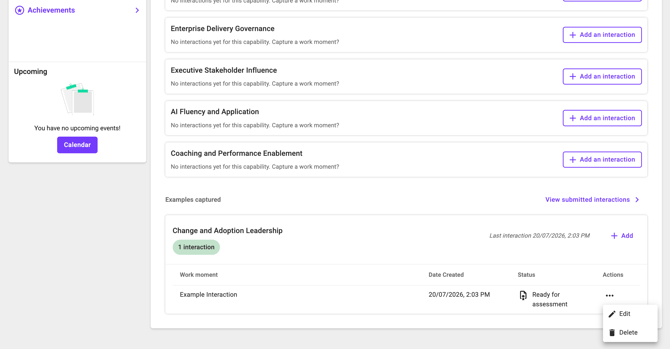
- Capabilities you've already logged Interactions for ("Examples Captured")
- Capabilities you haven't logged any Interactions for yet ("No Examples Yet")
From this card, you can create an Interaction in two ways:
- Click the "Capture a work moment" button at the top of the card — this opens a slide-out panel where you can fill in the form for any capability
- Click the "Add an Interaction" button directly on an individual capability card (for capabilities with no Interactions yet), or the "Add" button on cards that already have Interactions — these open the same form pre-linked to that specific capability
2. During a Capability Assessment (Form Submission)
Interactions can also be created as part of a Capability Assessment form. When a form includes a specially configured file upload field (marked as "Interaction" by an admin), submissions through that field can generate an Interaction automatically linked to that assessment. This means learners can capture real work moments as part of their formal assessment process, not just independently.
Uploading Supporting Evidence (Artefacts)
You can attach files to your Interaction as supporting evidence. Up to 5 files can be uploaded per Interaction.
Supported file types: PDF, Word (.docx), Excel (.xlsx), JPEG, PNG, MP4, MP3, WAV
Maximum file size: 100MB per file
Please note: Be mindful of what you upload. Any files you attach will be stored as part of your Interaction record.
Viewing and Editing your Interactions
Once saved, you can view a summary of any Interaction you've created. The summary shows all the details you entered along with any files you've attached.
If you need to make changes, you can edit an Interaction — updating any of the fields or adding/removing attached files.
Important: If an Interaction has already been submitted as part of a capability assessment, it will be marked as "Submitted in Assessment." You won't be able to edit that Interaction while it's in this state.
Interactions and Capability Assessments
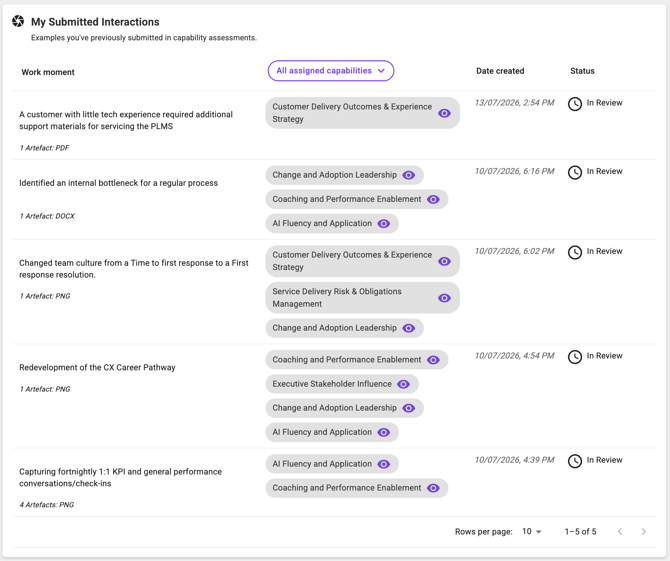
Interactions are directly connected to your capability assessments. When you go through a capability assessment, you'll be able to reference and attach relevant Interactions as evidence of your capability.
Statuses explained
Every Interaction has two behind-the-scenes statuses managed by the system:
| Status | What it means |
|---|---|
| Ready for Assessment | The Interaction has been saved and is available to include in an assessment |
| In Review | The Interaction has been linked to an active assessment submission |
| Assessed | The assessment this Interaction was part of has been completed |
There is also a Published Status, which controls whether an Interaction becomes visible beyond your personal record (for example, in a capability catalogue). This is managed by reviewers, not by you directly.
Deleting an Interaction
You can delete any Interaction you've created. Please be aware that deleting an Interaction will also remove all files and comments attached to it — this cannot be undone.
Frequently Asked Questions
Do I need any other features enabled to use Interactions?
Yes. The Capabilities feature must be enabled for your organisation before you can access Interactions. Please contact your account manager for further information.
Can I add an Interaction to more than one capability?
Yes. When creating or editing an Interaction, you can select multiple capabilities that the moment relates to. If proficiency levels are enabled, you can set a different proficiency level for each capability.
Can I see how many Interactions I have per capability?
Yes. The Interactions section shows you a summary per capability, including the total number of Interactions you've recorded and when the most recent one was added or updated.
Who can see my Interactions?
Your Interactions are private to you unless they are published as part of a reviewed assessment. The publishing process is controlled by your organisation's reviewers.
What happens to my Interactions if I'm no longer assigned to a capability?
Your Interactions are preserved even if you're later unassigned from a capability. However, you won't be able to add new Interactions against a capability you're no longer assigned to.