
To create a Quiz Plus activity, open a course or live learning in edit mode, select Create Activity, choose Quiz Plus, add your questions, set up the quiz settings, then click Create Activity.
NOTE: A Quiz Plus activity must sit inside a course or live learning. If you haven't created one yet, see How to Create a Course or How to Create a Live Learning.
How do you create a Quiz Plus activity?
- Open the course or live learning from the catalogue.
- Click the cog menu and select Start Editing.
- In the section you want, click Create Activity.
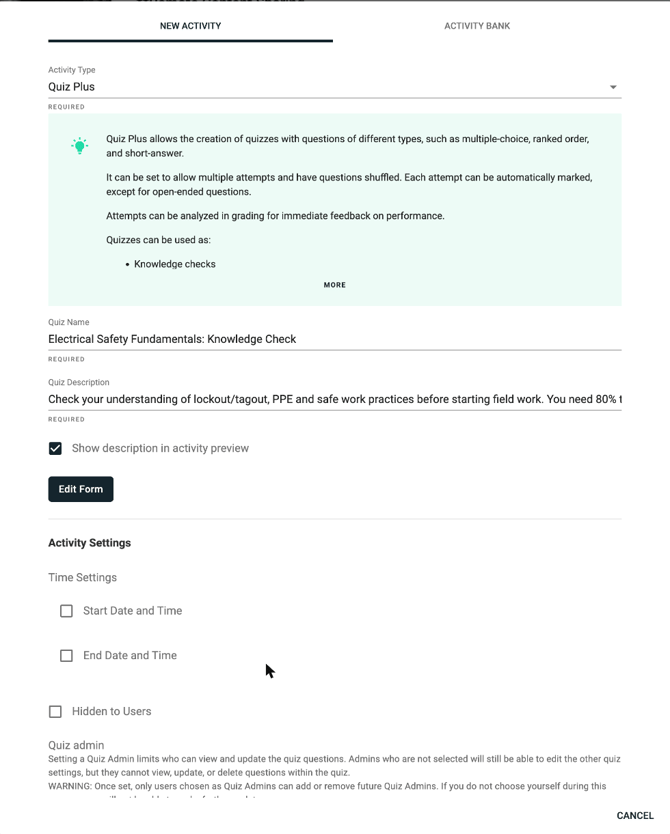
- Under Activity Type, select Quiz Plus.
- Enter a Quiz Name and Quiz Description. For example: "Electrical Safety Fundamentals: Knowledge Check".
- Click Edit Form. The Manage Quiz window opens.
- On the Questions tab, add your questions and give each one a point value (see below).
- On the Settings tab, set up General, Grading and Results (see below).
- Click Save. You need at least one question to save.
- Back in the activity window, set the activity settings (see below).
- Click Create Activity.
Set up your settings before learners start. Grades are calculated when an attempt is submitted. Changing settings later does not regrade earlier attempts.
How do you add questions and points?
Click a question type in the left sidebar to add it, then click the question to open its settings. Use Section to group related questions. Adding sections is optional. The Total Points for the quiz shows in the top right.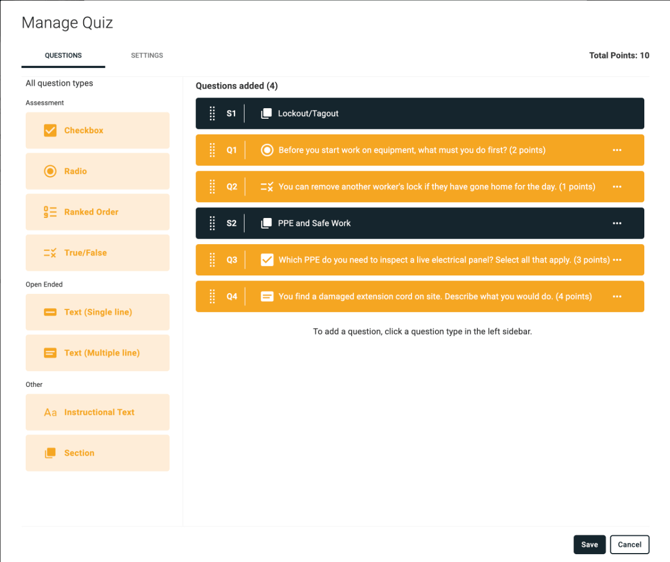
Each section has its own settings: Shuffle questions within section, Pool questions within section and Set Minimum Section Points.
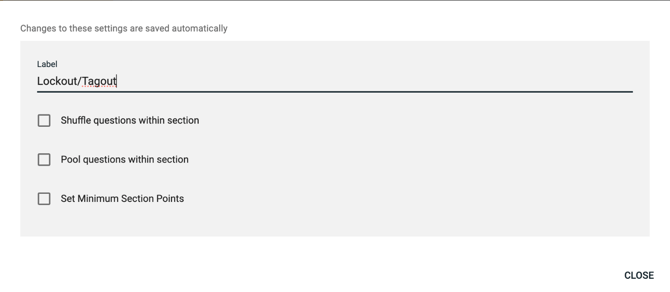
In each question:
- Enter the question in Label.
- Add your options and tick the checkbox next to every correct answer.
- Enter the Points.
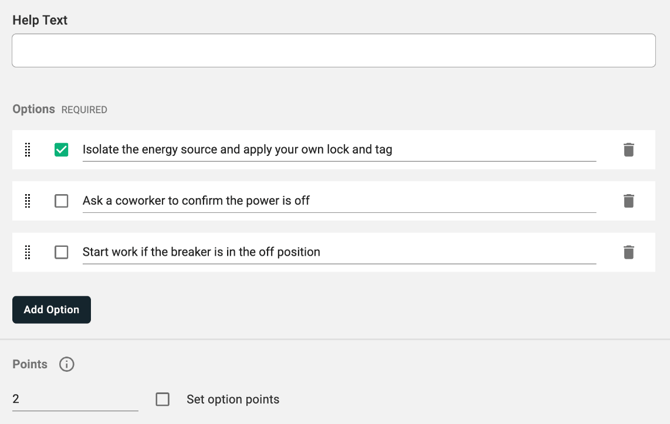
Important: Every question starts at 0 points, and a quiz with 0 total points marks every attempt as a Pass. Check that each question shows its points in the list (for example "(2 points)") and that Total Points is correct before you save.
Each question also has:
- Set option points: give individual answer options their own points.
- Grade Categories: count this question toward a category score.
- Feedback: text learners see about this question on their results.
- Shuffle option order: randomise the answer options.
- Exclude from pooling: always show this question when the section uses a question pool.
NOTE: Changes inside a question save automatically. After you close a question, reopen it and check that your correct answers are still ticked.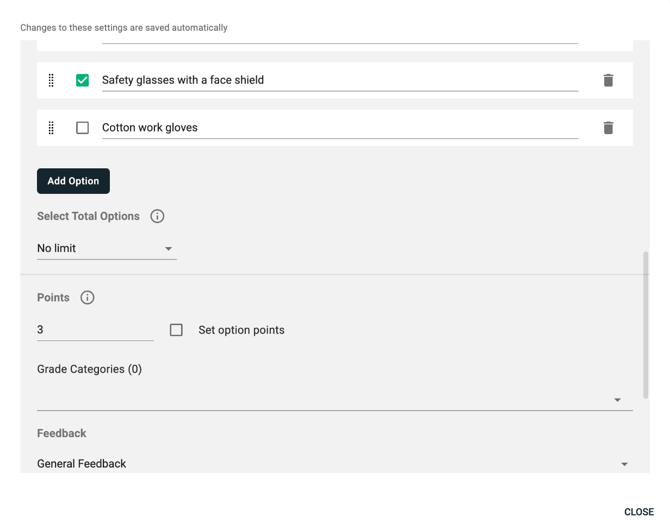
How do you set up the quiz settings?
In Manage Quiz, open the Settings tab. It has three sections: General, Grading and Results.
General
Presentation
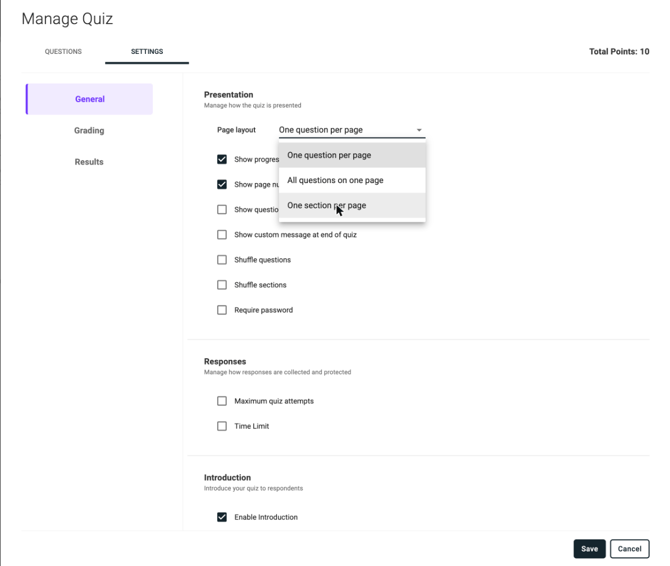
- Page layout: One question per page, All questions on one page, or One section per page.
- Show progress bar and Show page number bar.
- Show question number for respondents.
- Show custom message at end of quiz: replaces the default "Your answers have been submitted successfully".
- Shuffle questions and Shuffle sections.
- Require password: learners must enter the password to open the quiz.
Responses
- Maximum quiz attempts: the number of attempts allowed. Leave blank for unlimited.
- Time Limit: the time allowed, in minutes. When time runs out, the quiz is locked and submitted
Introduction
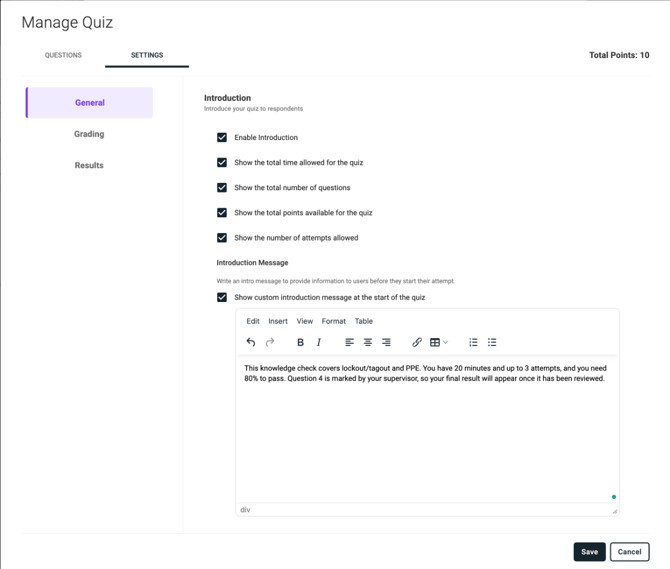
- Enable Introduction: shows tiles with the total time allowed, number of questions, total points and attempts allowed. Untick any that don't apply.
- Show custom introduction message at the start of the quiz: explain the rules, the pass mark, and that written answers are marked by hand.
Grading
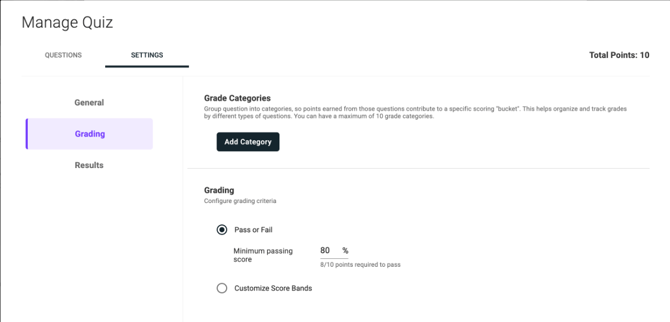
Grade Categories group questions so their points count toward a separate score. You can have up to 10. Keep categories to what you need, since large quizzes with many categories load more slowly.
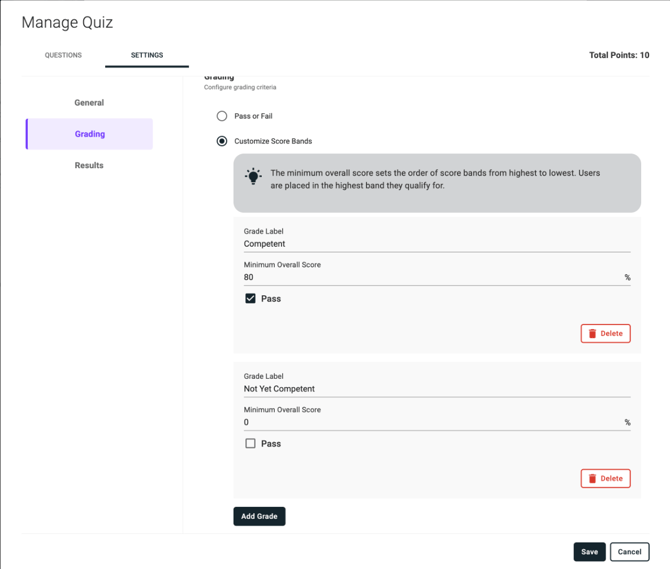
Under Grading, choose one option:
- Pass or Fail: set a Minimum passing score as a percentage. The default is 80%. The points needed show underneath (for example "8/10 points required to pass").
- Customize Score Bands: click Add Grade for each band and set a Grade Label, a Minimum Overall Score (%), whether the band is a Pass, and an optional Minimum Score by Grade Category. Learners are placed in the highest band they qualify for. For example: Competent (80%, Pass) and Not Yet Competent (0%, not a Pass).
Important: Pass is ticked by default on every new score band. Untick it on any failing band (for example "Not Yet Competent"), or learners in that band will pass.
Results
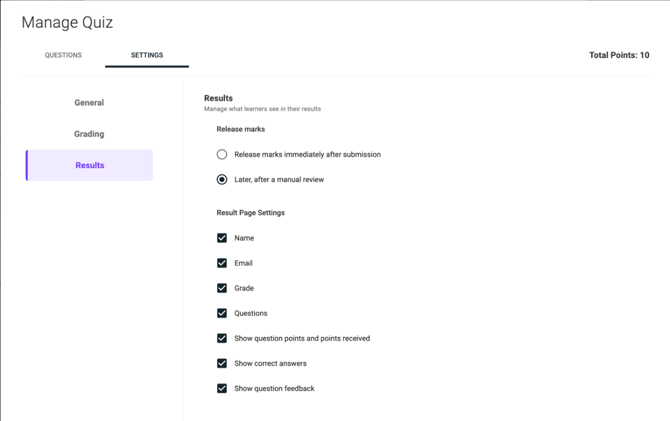
Release marks
- Release marks immediately after submission.
- Later, after a manual review: use this when written answers need marking. The attempt shows as Needs Review until it's graded.
Result Page Settings: choose what learners see after submitting: Name, Email, Grade, Questions, Show question points and points received, Show correct answers and Show question feedback.
What are the activity settings?
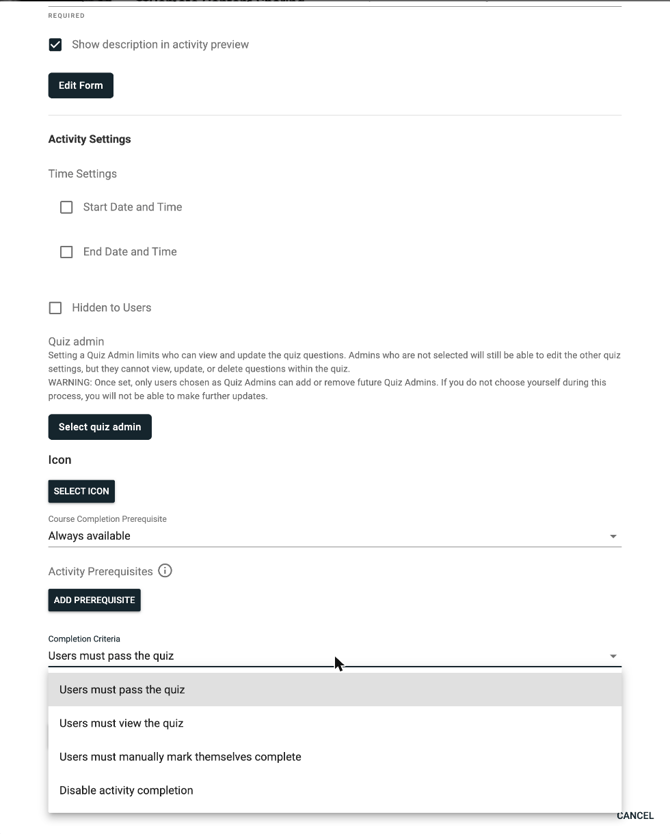
These sit in the activity window, below Edit Form.
- Start Date and Time / End Date and Time: when the quiz opens and closes.
- Hidden to Users: hides the quiz from learners.
- Quiz admin: limits who can view and edit the questions. Other admins can still change the other settings.
- Icon, Course Completion Prerequisite (default: Always available) and Activity Prerequisites.
- Completion Criteria: Users must pass the quiz, Users must view the quiz, Users must manually mark themselves complete, or Disable activity completion.
- Email nudge.
Warning: Once quiz admins are set, only they can add or remove quiz admins. Add yourself, or you won't be able to make further changes.
How is a Quiz Plus graded?
- Auto-graded: Checkbox, Radio, Ranked Order and True/False questions are marked on submission.
- Manually graded: Text (Single line) and Text (Multiple line) answers need a grader. The learner's status stays Incomplete until they're graded.
- Grades are set at submission. Changing points or grading settings later does not regrade attempts already submitted.
How do you make learners pass to complete?
A passing score on its own doesn't stop a failed attempt from completing the activity. To require a pass:
- Set Completion Criteria to Users must pass the quiz.
- Allow enough attempts in Maximum quiz attempts. Leave it blank if learners should keep trying until they pass.
Retakes: Learners aren't sent back into the quiz automatically after failing. They reopen the activity to start a new attempt, so mention this in the introduction message.
Results: Reopening the quiz starts a new attempt, so learners can't return to a previous results page once they close it.
How do you grade written responses?

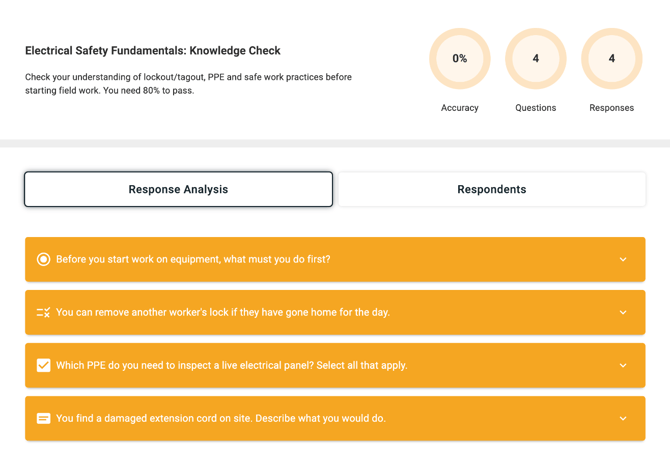
- In the course, find the quiz and click Grading. The Quiz Report opens, showing Accuracy, Questions and Responses.
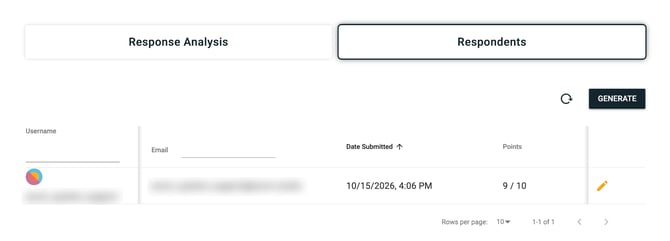
- Select Respondents. Each submission shows the username, email, date submitted and points.
- Click the pencil icon on the learner's row.
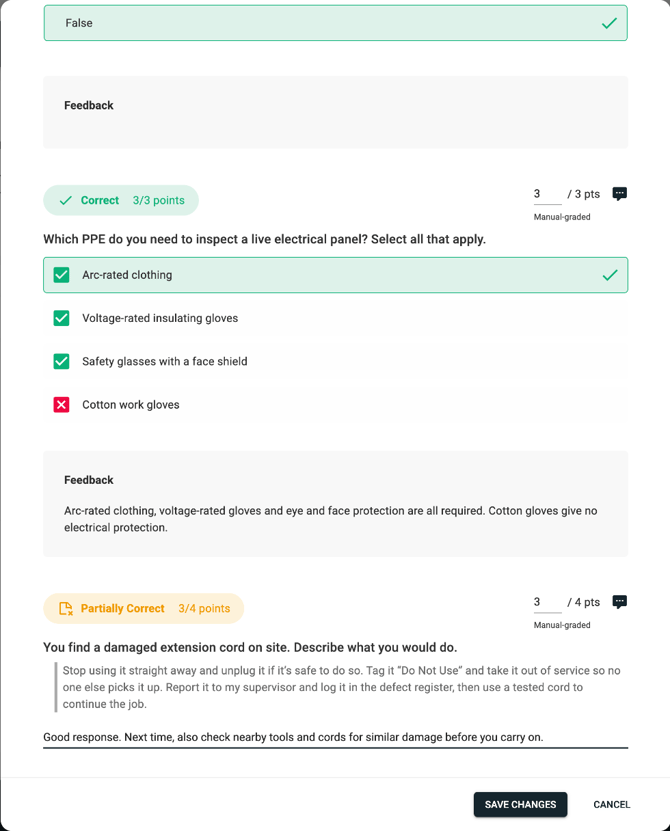
- Find the question marked Needs Review. Enter points in the box next to it (for example 3 / 4 pts) and press Enter.
- Click the comment icon to add feedback for the learner.
- Click Save Changes.
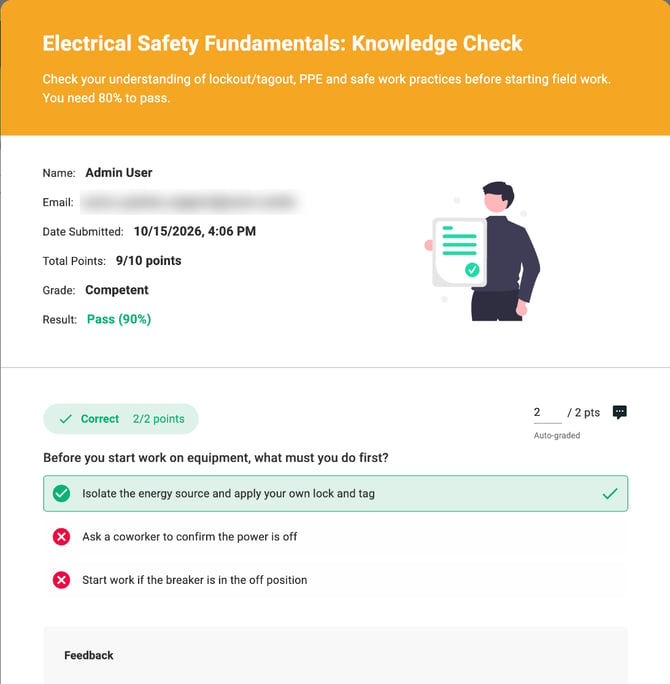
The attempt updates with the total points, grade and result (for example 9/10 points, Competent, Pass (90%)).
- Override a grade: you can change the points on any question, including auto-graded ones. The question then shows as Manual-graded.
- Whole points only. Half marks (for example 2.5/3) aren't supported.
- Managers can't grade Quiz Plus. If managers need to mark work, use an Assignment activity.
- Can't see Grading? If quiz admins are set on the quiz, ask one of them to add you.
Before you go live
- Test as a learner. Admins can't complete the quiz, so log in as or impersonate a standard user and check the score you get.
- Finalise your questions first. You can't delete a question once someone has attempted the quiz.
- Deleting attempts: only Acorn Support can delete a learner's attempt. Send us the quiz link and the learner's name.
- Exports: you can export grades, but not individual question responses.