
Learner Engagement Emails let you send one-time emails to targeted groups of learners — for example, nudging learners who have stalled partway through a course, or re-engaging users who haven't logged in recently. Emails can be sent immediately or scheduled for a future date.
Note: Only Acorn Admins and Tenancy Admins can access this feature.
-
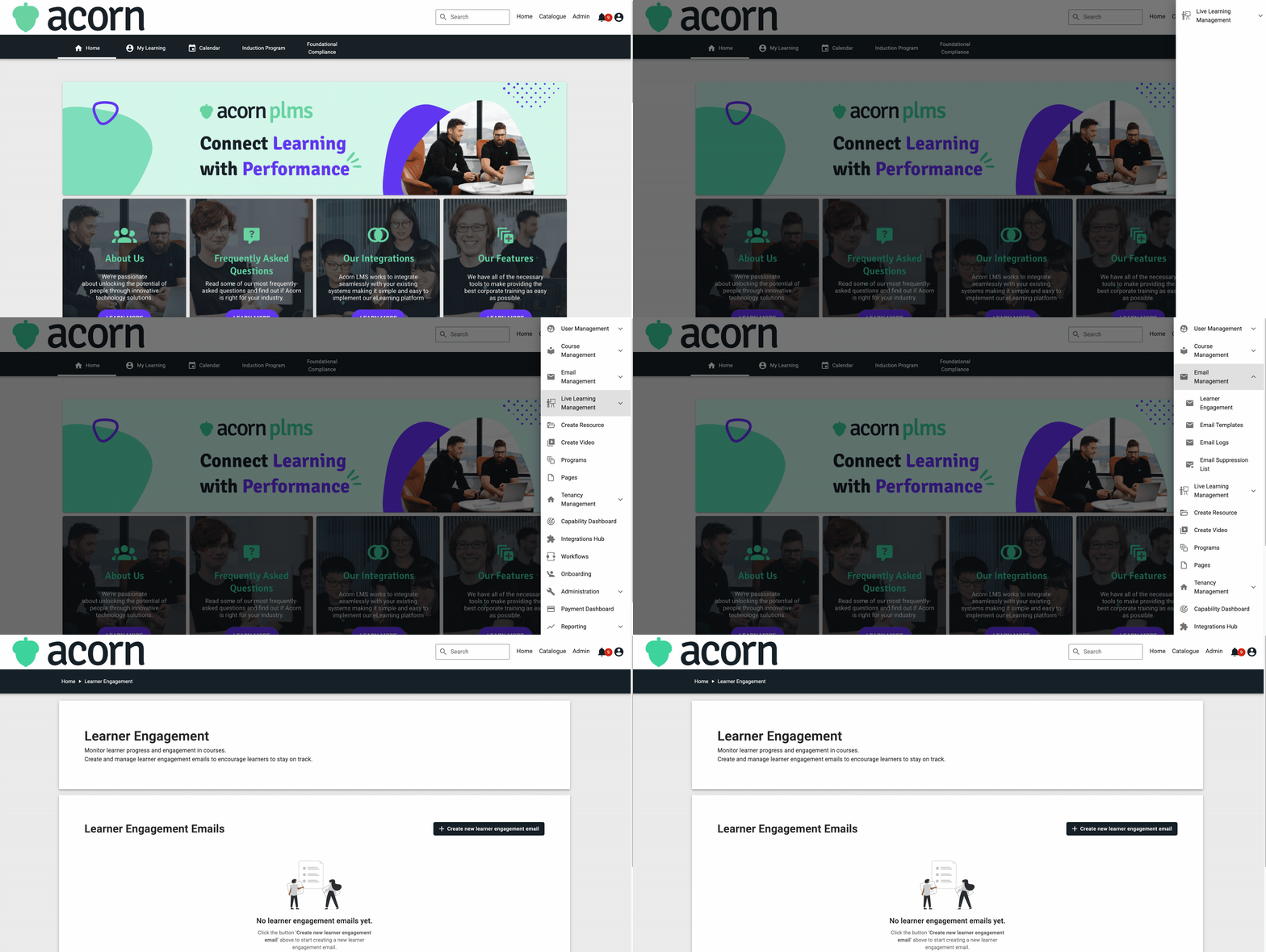
Navigate to Admin > Email Management.
-
Click Create New Learner Engagement Email.
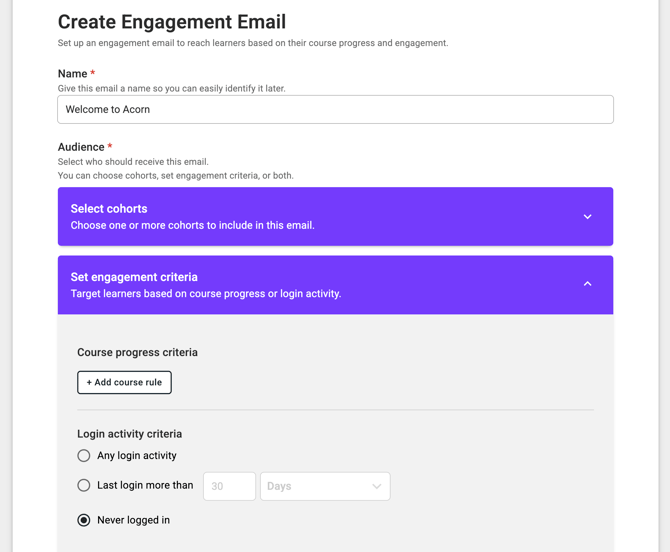
- Enter a Name for the email. This is for internal tracking purposes only - it's how the email will appear on your dashboard. Learners will not see this name.
-
Choose who will receive the email. You can use one or both of the following targeting methods:
- Saved Cohorts — Select one or more existing cohorts from the dropdown. Multiple cohorts can be selected.
-
Criteria-Based Targeting — Target learners based on specific criteria. You can use one or both criteria types together:
-
Course Progress — target learners based on their progress through one or more courses (e.g. started but not completed).
-
Login Activity — target learners based on their login behaviour (e.g. haven't logged in within a certain period)
-
Tip: To send to all users on your site, create a new cohort and enable the Assign all users to this cohort toggle.
5. Enter an Email Subject line. This is what the learner will see in their inbox.
6. Compose the Email Body. The editor supports bold, italic, underline, links, bullet lists, and numbered lists.
Note: Emails are text-based only. File attachments and images are not supported in this release.
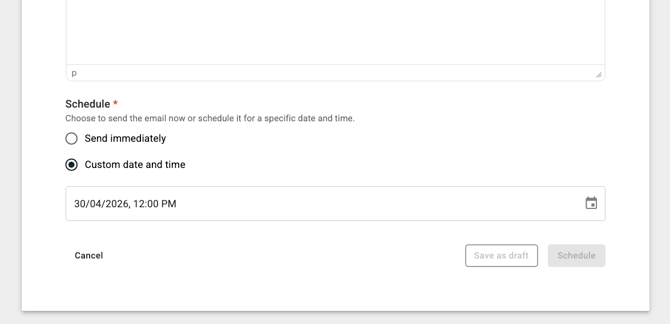
7. Choose when to send the email:
a. Send Immediately — The email will be dispatched as soon as you confirm.
b. Custom Date and Time — Select a future date and time for the email to send.
Note: The audience is evaluated at the time the email actually sends, not when you schedule it. If a learner joins the cohort or meets the criteria after you schedule but before it sends, they will be included. If a learner unsubscribes in that window, they will be excluded.
8. Click one of the following:
-
Send — dispatches the email immediately (if Send Immediately is selected)
-
Schedule — queues the email for the selected date and time
-
Save as Draft — saves the email without sending, so you can return to it later from the email list
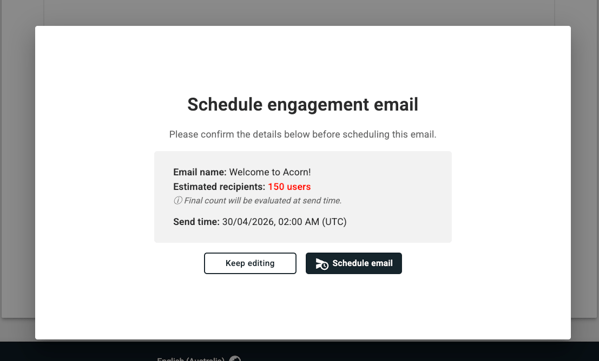
Confirmation screen will appear showing a summary of your email details and how many learners are expected to receive it. Review the details and confirm to finalise.
9. For scheduled emails, you can Edit or Cancel the send at any time before it dispatches from the email list view.
You have now successfully created and sent a Learner Engagement Email!