
A Due Date Workflow sets a deadline by which enrolled learners must complete a course. Once the due date passes, learners show as overdue in reports and can receive automated reminder and overdue emails.
How a Due Date Workflow works
- When a learner is enrolled in the course, the due date countdown begins based on the Due Period you configure (e.g. 30 days from enrolment).
- If the learner does not complete the course by the due date, they become overdue.
- Reminder emails can be sent before the due date, and overdue emails can be sent after it.
- Unlike a Refresher Workflow, a Due Date Workflow does not expire or archive completions — it only tracks the deadline and sends notifications.
Step 1: Create the Due Date Workflow
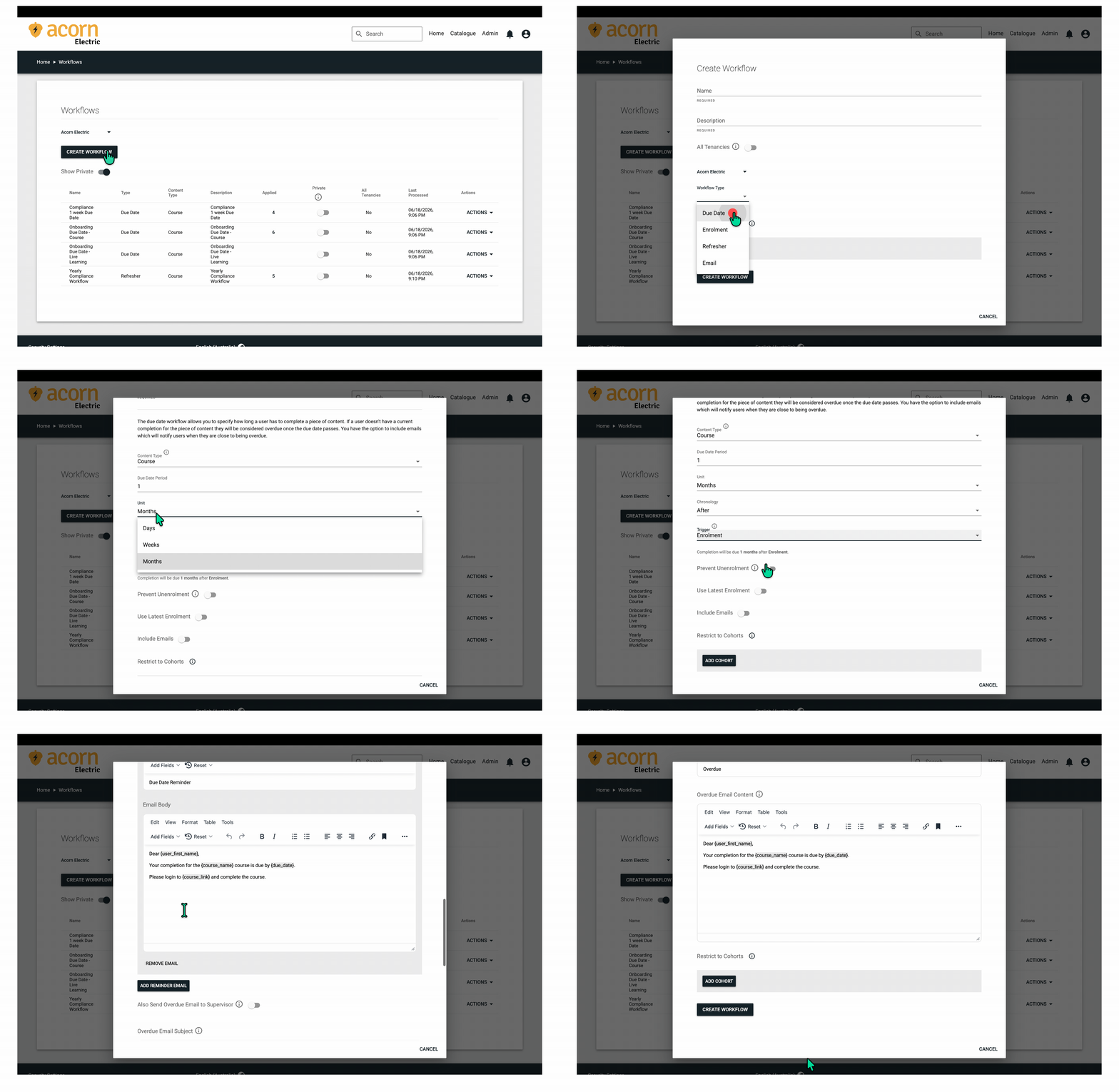
- Go to Admin > Workflows and click Create Workflow.
- Enter a Name (e.g. “30 Day Completion Deadline”).
- Set Workflow Type to Due Date.
- Set Content Type.
- Set the Due Period and Unit.— e.g. 30 days. This is how many days after enrolment the learner has to complete the course.
- Set the Trigger.
- Turn on Prevent Unenrolment if you do not want users to be able to unenroll themselves.
- Turn on Use Latest Enrolment if you are using this worflow in conjunction with an Enrolment Workflow.
-
Enable Include Emails if you want to notify learners when their completion expires or is approaching expiry.
-
Click Add Reminder Email to set up pre-expiry reminders (e.g. 30 days before expiry).
-
Turn on Send Emails Retroactively if you want emails sent to users whose completions already expired before this workflow was created.
-
Turn on Also Send Expired Email to Supervisor if you want the user's supervisor to receive the same email at the same time when the user receives their Completion Expired Email, with additional text identifying which user is expired. If monthly repeat is enabled, the supervisor will also receive the monthly resend.
-
- Click Create Workflow.
Step 2: Add the Due Date Workflow to the course
- Navigate to the course in the catalogue.
- Click the cog icon and select Update Course.
- Scroll down and click Add Workflow.
- Select your Due Date Workflow and click Update Course to save.
Combining with other workflows
For compliance training, it is common to combine a Due Date Workflow with an Enrolment Workflow and a Refresher Workflow on the same course. The Enrolment Workflow handles auto-enrolment, the Due Date Workflow enforces the completion deadline, and the Refresher Workflow handles annual re-completion. For an overview of all workflow types, see Workflow Definitions.
Important notes
- The due date is calculated from the enrolment date, not from when the learner first accesses the course.
- Completing the course before the due date clears the overdue status. The workflow does not need to be removed from the course for this to occur.
- A Due Date Workflow does not automatically unenrol or lock out learners who are overdue — they remain enrolled and can still complete the course.