
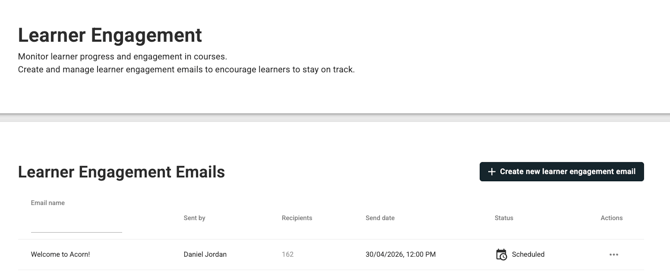
After creating an email, you can track it from the main Engagement Emails list in Admin > Email Management.
The page will display the following information:
-
Email name
- Sent by (Who sent the email)
- Recipients (How many users received or are scheduled to receive the email)
- Send date (When the email was sent or is due to sent if scheduled)
- Status (Draft, Scheduled, Processing, Paused, Sent, Skipped or Failed)
- Actions
Statuses
Draft — The email has been saved but not yet scheduled or sent. Available actions: Edit, Delete, Duplicate
Scheduled — The email is set to send at a future date and time. You can still make changes before it dispatches. Available actions: Edit, Delete, Duplicate
Processing — The email is currently being sent. No changes can be made while sending is in progress. Available actions: Duplicate only
Paused — The daily sending limit was reached partway through the send. The email will automatically resume sending the next day. Learners who already received the email will not receive a duplicate — the system picks up where it left off. Available actions: Duplicate only
Sent — All emails have been dispatched to the matched audience. Available actions: Duplicate, Delete
Skipped — The email was scheduled, but could not be sent at the scheduled time because the feature was not enabled. You can edit and reschedule the email. Available actions: Edit, Delete, Duplicate
Failed — The email could not be sent due to a system issue (for example, email sending is disabled for the tenancy). You can edit and retry. Available actions: Edit, Delete, Duplicate
Note: If your email shows as Paused, this means you've reached the daily sending limit. The remaining emails will be sent automatically the next day. If this happens regularly, contact Acorn support or your account manager to discuss increasing your limit.