
The Manage Payment Refunds feature allows users to request a refund for purchased content. Admins can then approve or decline these requests. Please note: this feature does NOT process the refund as a payment transaction. It acts solely as a record of refund claims and their approval status. To process the actual refund, admins must do so directly via their payment provider or bank account.
To learn how to manage payment refunds, please follow the steps below.
1. Navigate to the Manage Payment Refunds page by going to Admin > Payments > Manage Payment Refunds.
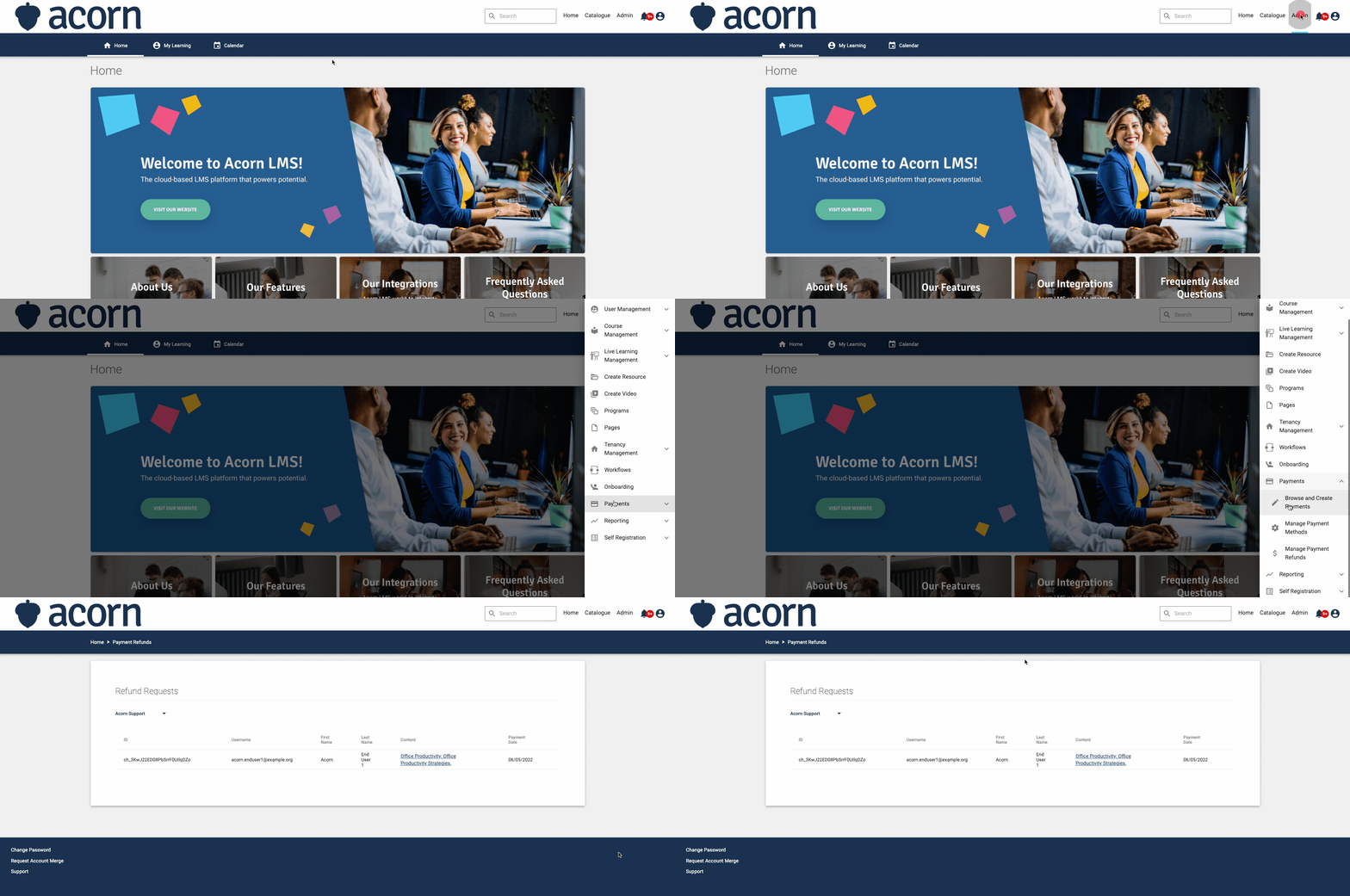
2. The Manage Payment Refunds page displays the payment, user, and content information for all refund requests and past refunds on the tenancy.
3. Scroll to the right of the page to:
- View the Refund Reason by clicking the
eye icon.
- Add a Comment by clicking the pencil
icon.
- Approve the refund by clicking "APPROVE".
- Decline the refund by clicking "DECLINE".
⚠️ Important Note: Approving a refund in the LMS does not transfer money back to the user's account. The financial refund must be processed separately through your payment provider. The LMS's refund feature is used for auditing purposes and for withdrawing learners from the relevant content.
You have now successfully reviewed and managed payment refunds. Remember to process any approved refunds directly through your payment provider.