
What is it?
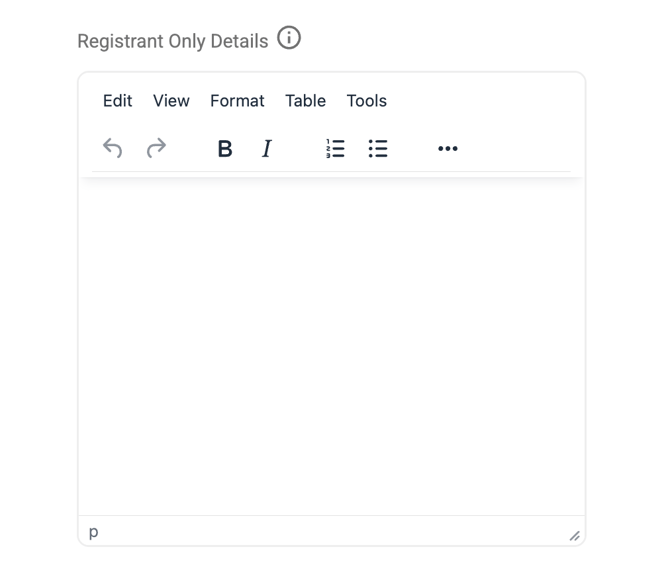
Registrant Only Details is a new rich-text field available when creating or editing a Live Learning session. Content entered here is only shown to learners who are already registered for the session - anyone else browsing or viewing the session page will not see it.
How is it different from the Session Description?
There are now two description fields on every session:
| Field | Who Can See It |
|---|---|
| Session Description | Anyone who can view the session — registered or not |
| Registrant Only Details | Only learners with a Registered or Attended status |
💡 Tip: Use Session Description for public-facing information (what the session covers, who it's for). Use Registrant Only Details for anything you only want confirmed attendees to see, such as Zoom links, access codes, parking instructions, or pre-reading materials.
Where does it appear?
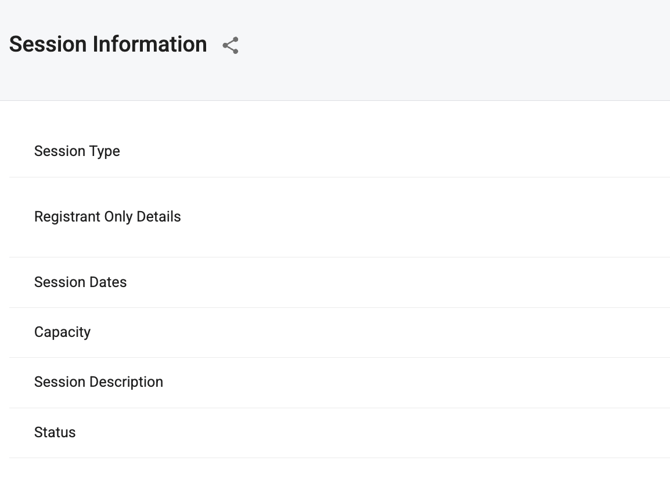
Once a learner is registered, they will see a Registrant Only Details row in the session information table on the session details page — but only if the admin has entered content in that field. If the field is left blank, it won't appear at all (not even as an empty row).
It also appears in the following confirmation emails sent to registered learners:
- ✅ Registration Confirmed
- ✅ Self Registration Confirmed
- ✅ Session Changed (update notification)
It is intentionally excluded from these emails, as they go to people who are no longer or not yet registered:
- ❌ Session Cancelled
- ❌ Registration Withdrawn
- ❌ Self Registration Withdrawn
- ❌ Registration Request Denied
- ❌ Approval request emails
- ❌ Instructor-facing emails
What changed?
Previously, calendar invites were sent as .ics file attachments in confirmation emails. For sessions with a single date, calendar invites are now sent as inline/embedded calendar invites — the kind that Outlook, Gmail, and Apple Mail natively display as an Accept / Decline / Tentative prompt directly in the email.
⚠️ Note: Sessions with multiple dates continue to use the old .ics file attachment method.
What does the invite include?
The inline calendar invite includes the session name, date and time, venue or location, and a description (see below for how the description is populated).
The Registrant Only Details field and the calendar invite are directly linked when it comes to the invite description:
| Scenario | Calendar Invite Description |
|---|---|
| Registrant Only Details is filled in | Uses Registrant Only Details content |
| Registrant Only Details is blank | Falls back to the old Calendar Invite Description (ical description) field |
| Both fields are blank | Falls back to the session description |
This means you can use Registrant Only Details as a single source of truth for private session information. Anything you enter there will automatically populate both:
- The session details view for registered learners
- The calendar invite they receive in their confirmation email
For example, if you add a Zoom link to Registrant Only Details, it will appear in the session page and be embedded directly in the learner's calendar event — making it easy to find when they need it.
Important Notes & Limitations
- Single-date sessions only — The inline calendar invite only applies to sessions with one session date. Multi-date sessions still use the .ics file attachment.
- The field is optional — If left blank, everything behaves exactly as before. The old Calendar Invite Description field is used as a fallback.
- Rich text is supported — The Registrant Only Details field supports formatted text including bold, links, and lists. This means you can add clickable meeting URLs.
- Editing the field triggers re-notification — If you update Registrant Only Details after a session is created, the system treats this as a change and will send update emails and updated calendar invites to existing registrants, the same way a venue or date change would.
- The old Calendar Invite Description field — This field still exists and works as a fallback, but is no longer shown as a separate field in the admin UI when the new feature is active. Registrant Only Details takes its place as the primary input.
Best Practices
- Use Registrant Only Details for anything you only want confirmed attendees to see — virtual meeting links, room access codes, parking instructions, pre-reading that shouldn't be public.
- Use Session Description for public-facing content like what the session covers and who it's for.
- If your session has a virtual meeting link (e.g. Zoom or Teams), Registrant Only Details is the recommended place to put it — it will automatically be included in the learner's calendar invite so it's easy to find when the time comes.
- For multi-date sessions, remember that the calendar invite still goes out as a file attachment, so learners will need to manually add it to their calendar.