
What this error means
This error appears when a user's email address is registered in a different Acorn tenancy than the one they are trying to log in to. Each email can only be the primary account holder in one tenancy at a time.
Step 1: Confirm which tenancy the user belongs to
- To initiate this, you must know which tenancy the user's email address is in. If you do not, know, contact Acorn Support with the user's email address.
Step 2: Move the user to the correct tenancy
- If you have admin access to both tenancies: go to the source tenancy's Admin > Tenancy Management > Browse and Update Tenancies > [Tenancy]
- Select the minus button
 below Remove Users > Select User(s) > Confirm.
 - Navigate to the correct tenancy and select the plus button
 below Add Users > Select User(s) > Confirm.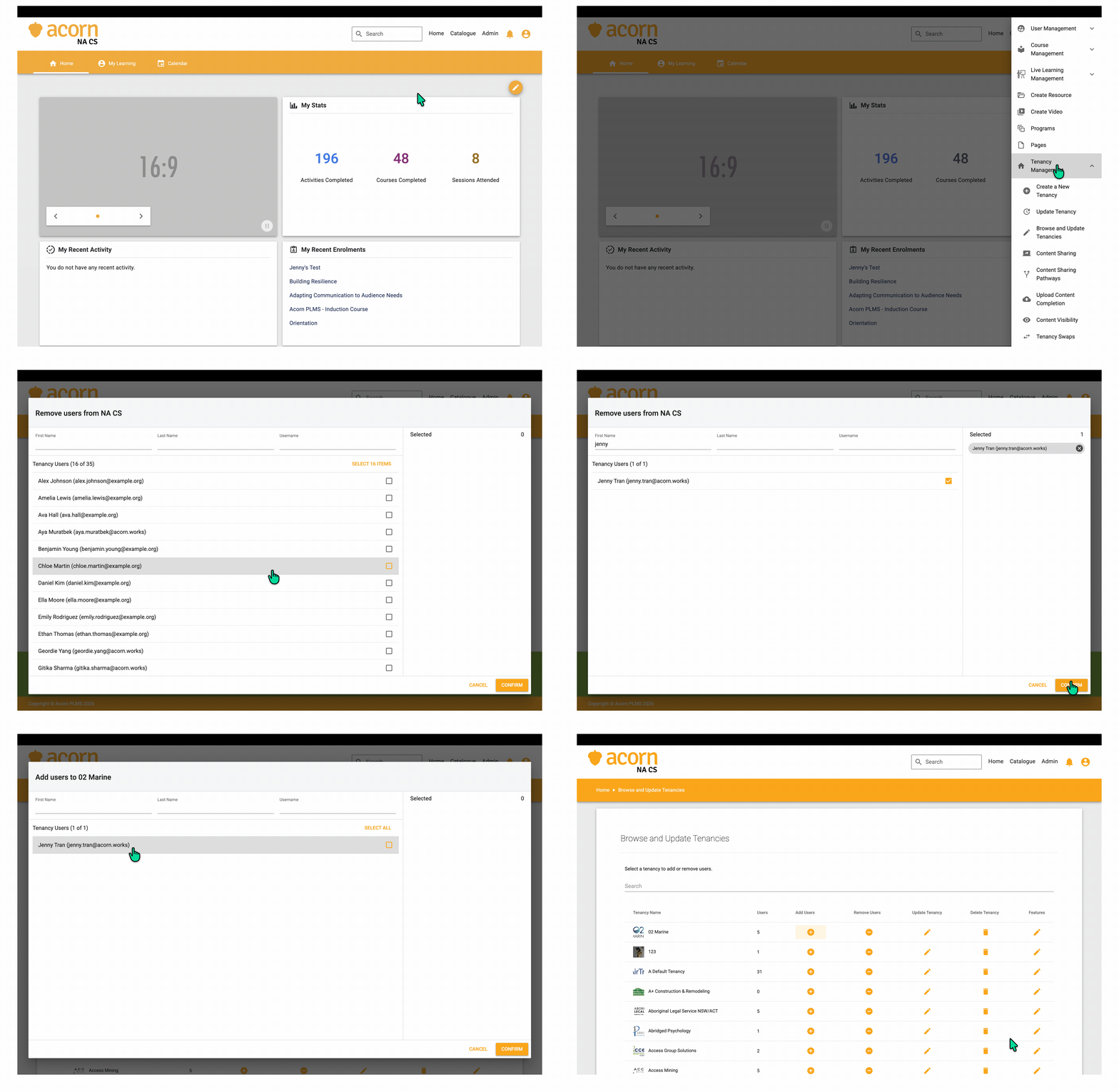
- If you do not have access to the source tenancy, raise a support ticket and Acorn Support will perform the move.
Step 3: After the move
- The user's profile, learning history, and completions from the old tenancy do not automatically transfer.
- If historical data needs to be migrated, request this via a support ticket.
- The user should receive a welcome email to their new tenancy.
Preventing this issue
- Use HR Feed or SCIM provisioning to manage users centrally.
- Avoid creating user accounts manually in multiple tenancies with the same email.
- When onboarding users from another organisation, use the Shared Content or Content Sharing feature rather than moving users.
Related: Sandbox users in production
If a user was created in a sandbox or staging environment and cannot log in to the production tenancy, use the same move process above or re-create the account in production.